Mac audio guide
How SOUND controls Mac app audio without a virtual driver
See how SOUND uses Apple’s Core Audio process taps for per-app volume, EQ, and routing without installing a virtual audio driver.
September 21, 20266 min read
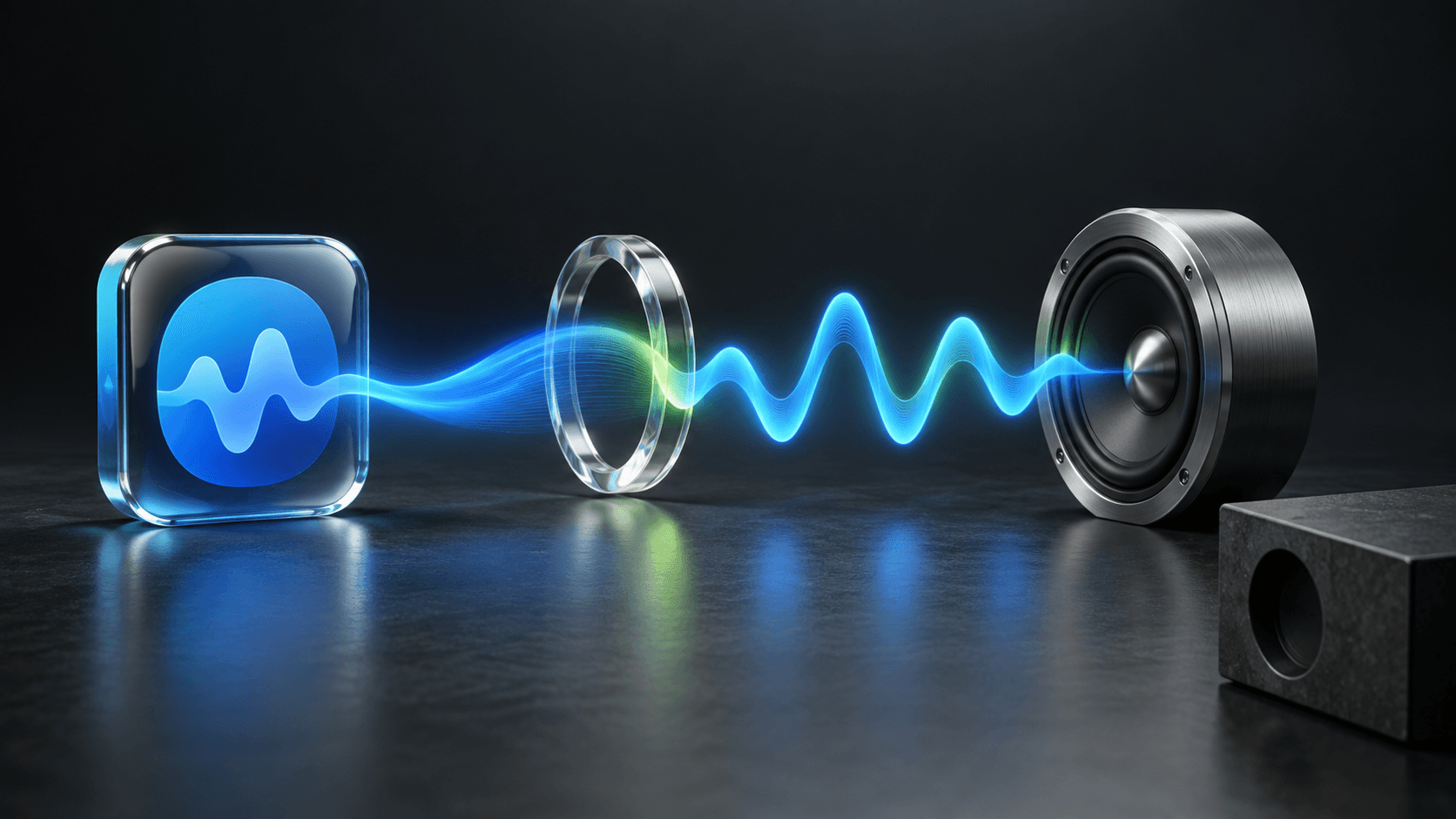
SOUND controls the volume, equalizer, and output of individual Mac apps through Apple’s modern process-audio system. It does not install a virtual audio driver. The audio stays on the Mac and is processed only while SOUND is applying the controls you chose.
What driver-free means
Older Mac audio tools often create a virtual output device, route every app through it, then send the mixed result to your real speakers or headphones. That can work well, but it adds a persistent component to the Mac’s audio setup and may require an installer, administrator approval, or a restart.
SOUND does not add a device to Library/Audio/Plug-Ins, install a kernel extension, or ask you to make a new virtual device the Mac’s default output. When SOUND is closed, there is no installed driver left in the system audio path.
How process taps reach one app
Apple’s Core Audio process taps let software request the outgoing audio from one process or a selected group of processes. A tap identifies the source at the system level, so SOUND can treat Music, Spotify, a browser, and a call app as separate controls while they are playing.
SOUND creates a temporary private audio path for the selected process, applies the setting in real time, and returns the result to the chosen output. That is how one app can be quieter, use a different EQ curve, or play through another connected device without changing every other app.
The public Apple API is the important boundary here: SOUND uses a capability supplied by macOS rather than shipping its own audio driver. SOUND itself requires macOS 26 or later.
Why macOS asks for permission
Outgoing system audio is protected. The first time SOUND needs to make a process tap, macOS asks for access under System Settings → Privacy & Security → Screen & System Audio Recording. Apple requires apps that use process taps to explain why they need this access.
The label can sound broader than the task. For SOUND, the permission is used to receive the live output of an app you are controlling. It does not grant microphone access, inspect files, or turn the app into a general screen recorder. You can revoke it later in System Settings; SOUND’s per-app controls will stop working until it is restored.
What SOUND changes in real time
- An app begins producing audio and appears in SOUND.
- SOUND creates a protected process tap for that active source.
- Your volume and 8-band EQ settings are applied to its live signal.
- The processed signal plays through the system output or the device you selected for that app.
Each app keeps its own settings, while the System row covers sources without an individual override. Start with volume before EQ: matching levels makes it easier to hear whether a frequency change actually helps. The per-app volume guide shows that workflow, and the routing guide explains how to send two apps to different devices.
What stays on your Mac
SOUND processes the live stream on-device. It does not record or store the audio, send it to a server, or use it for training. The app does not require an account. Quitting SOUND stops its processing and leaves each source playing through the normal Mac output.
Permission is still meaningful even when processing is local. macOS makes the decision visible and reversible because the same system-audio capability could be used differently by another app. Judge each app by both the permission it requests and the behavior its maker documents.
When SOUND fits—and when it does not
SOUND is a focused free option when you want per-app volume, an 8-band EQ, and output routing from the menu bar on macOS 26 or later. It is not a DAW, it does not host Audio Units, and it does not import headphone correction profiles. Those are real reasons to choose a larger paid audio utility instead.
The hands-on SOUND test includes real interface screenshots, the tested build and date, and a comparison with four other Mac equalizers. Use that evidence when deciding whether the simpler driver-free path matches your setup.
Frequently asked questions
- Does SOUND install a virtual audio driver?
- No. SOUND uses the process-audio capability built into modern macOS. It creates its working audio path while the app runs and does not install a persistent virtual audio device, system extension, or kernel extension.
- Why does SOUND need system audio recording permission?
- macOS protects access to the audio produced by other apps. SOUND needs that permission to receive the selected app’s live output, apply its volume or EQ setting, and play the result. The permission does not give SOUND microphone access.
- Does SOUND record or upload my Mac audio?
- No. SOUND processes live audio locally and does not record, store, or upload it. The audio is used only while the app is applying the controls you selected.