How to play audio through two outputs on Mac
Send the same Mac audio to two outputs with Audio MIDI Setup. Create a Multi-Output Device and check volume, clock settings and Bluetooth delay.
November 11, 20265 min read
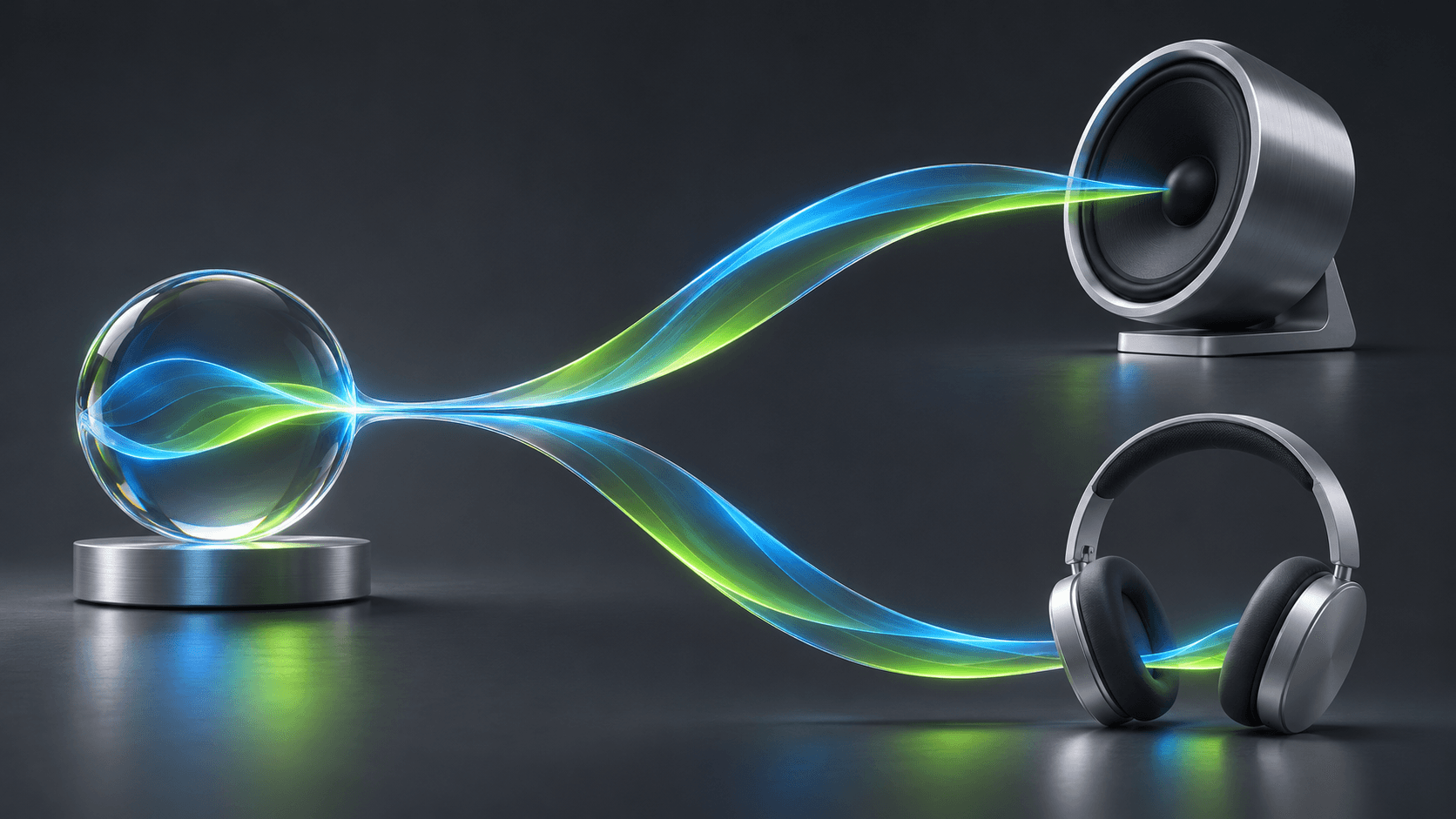
To play the same Mac audio through two outputs, connect both devices, create a Multi-Output Device in Audio MIDI Setup, and select it as the sound output. This duplicates one mix. If you want a call in headphones and music on speakers, choose per-app routing instead. Wireless devices can also introduce different delays, even when both receive the same audio.
Connect and test each output separately
Connect the headphones, speakers or audio interface before creating the combined device. In System Settings → Sound → Output, select each one in turn and play a short clip. Fix a silent device first; combining it with a working output will not repair the connection.
Set each device to a moderate volume now. Depending on the combination, the resulting Multi-Output Device may not offer one master volume slider. Keep the physical controls or individual device controls within reach.
Create the Multi-Output Device
- Open Applications → Utilities → Audio MIDI Setup. If necessary, choose Window → Show Audio Devices.
- Click the + button below the device list and choose Create Multi-Output Device.
- Tick Use for the two outputs you want to hear. Give the combined device a recognizable name.
- Choose a Primary Device. Older macOS versions may use different clock-related labels.
- Select the new device under System Settings → Sound → Output, then start playback.
These steps follow Apple's Multi-Output Device instructions. An app with its own audio-device setting may continue using that explicitly selected device. Choose the combined output there as well, or let the app follow the system output if it offers that option.
Check clock settings and distinguish drift from delay
Independent audio devices do not necessarily run at exactly the same clock speed. Where Audio MIDI Setup exposes Drift Correction, use it for a secondary independently clocked device rather than the primary clock source. Apple's combined-device clock guidance explains this distinction. For a first setup, use a sample rate supported by both devices and avoid changing formats during playback.
Clock drift and fixed playback delay are different. Drift correction helps devices stay together over time; it does not remove Bluetooth buffering or make a wireless speaker sound simultaneous with a wired one. If you hear a constant echo in the room, test two wired outputs before trying increasingly complex settings.
Do not confuse Multi-Output with Aggregate Device
Multi-Output is the starting point for sending the same playback to more than one destination. An Aggregate Device combines input and output channels so an audio application can address them as one larger device. Selecting an aggregate does not automatically mean that every stereo track is copied to every output pair; the application's channel routing matters.
For recording with multiple interfaces, follow the device maker's clock instructions and Apple's aggregate setup documentation. For watching something together, begin with the simpler Multi-Output job and verify each listener hears the intended channels.
Use per-app routing when the content should differ
To keep a meeting private in headphones while music plays on speakers, use the meeting app's output selector or a per-app router. Our free SOUND app offers separate output choices for apps on macOS 26+. Its role here is assigning apps to destinations, not replacing Audio MIDI Setup's duplication feature. Follow the routing guide for that different workflow.
Return to one output when you finish
Select your ordinary speakers or headphones in Sound settings before disconnecting devices. You can keep the named Multi-Output Device for later or remove it with the minus button in Audio MIDI Setup. If a screen reconnects but volume remains unavailable, check the HDMI volume guide rather than rebuilding the combined device repeatedly.
Frequently asked questions
Can a Mac play audio through two Bluetooth headphones?
It may work when both headphones connect and appear as usable audio outputs. Add them to a Multi-Output Device and test playback. Compatibility, buffering and lip sync vary; the combined device does not guarantee identical delay.
Should I create an Aggregate Device or a Multi-Output Device?
For duplicating the same playback to several outputs, start with a Multi-Output Device. An Aggregate Device combines channels for an audio app, which must route audio to the appropriate output channels.
Why can I not change Multi-Output volume with one slider?
The combined output may not expose a single master volume control. Set levels on the individual devices or their physical controls, and test each output before starting playback.