Mac audio guide
Route audio per app on Mac: speakers, headphones and calls
Send music to speakers and calls to headphones. Learn how per-app audio output works on Mac and route each app without a virtual audio driver.
August 14, 20264 min read
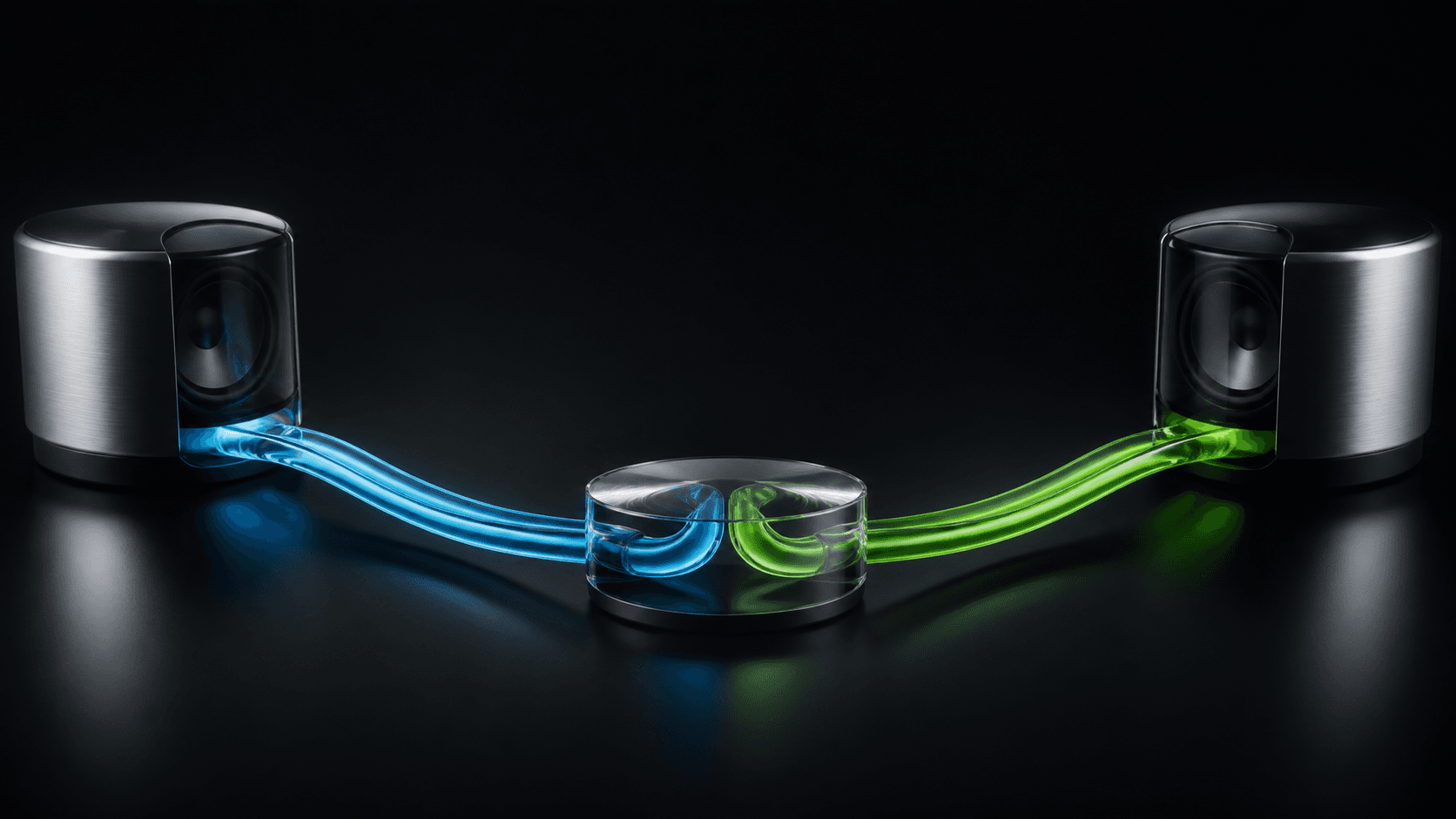
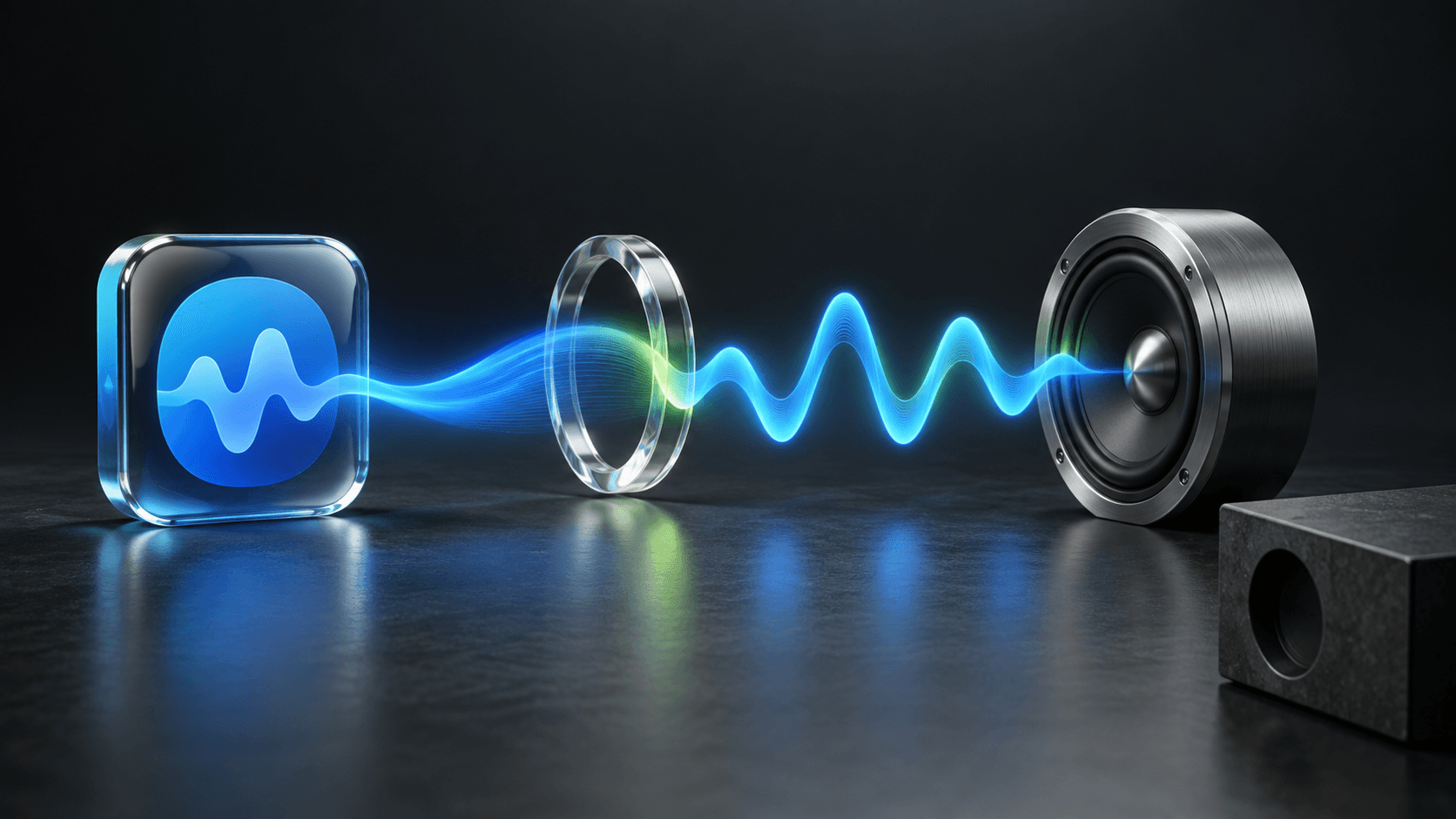
Mac per-app audio routing lets music go to speakers while a call stays in headphones. Your Mac normally chooses one main output—speakers, headphones, a display, or another connected device—so routing takes the next step when two apps need different destinations.
What the Output menu on Mac does
Open System Settings → Sound → Output and select a device to send your Mac’s sound there. It is a reliable way to switch everything from speakers to headphones, but it treats every app as one group.
That becomes limiting when two things are happening at once. You may want a video call private in your headset while music plays through a speaker, or you may want a browser video on a display while alerts stay elsewhere.
Make both devices available first
Your Mac can only route to outputs it can already see. Connect your headphones, speakers, display, or audio interface before assigning apps. If one device does not appear in System Settings → Sound → Output, connect or select it there before trying to route an app to it.
This keeps the setup familiar: SOUND does not ask you to invent new devices. It gives active apps a choice among the outputs your Mac already knows.
Assign an output to each app
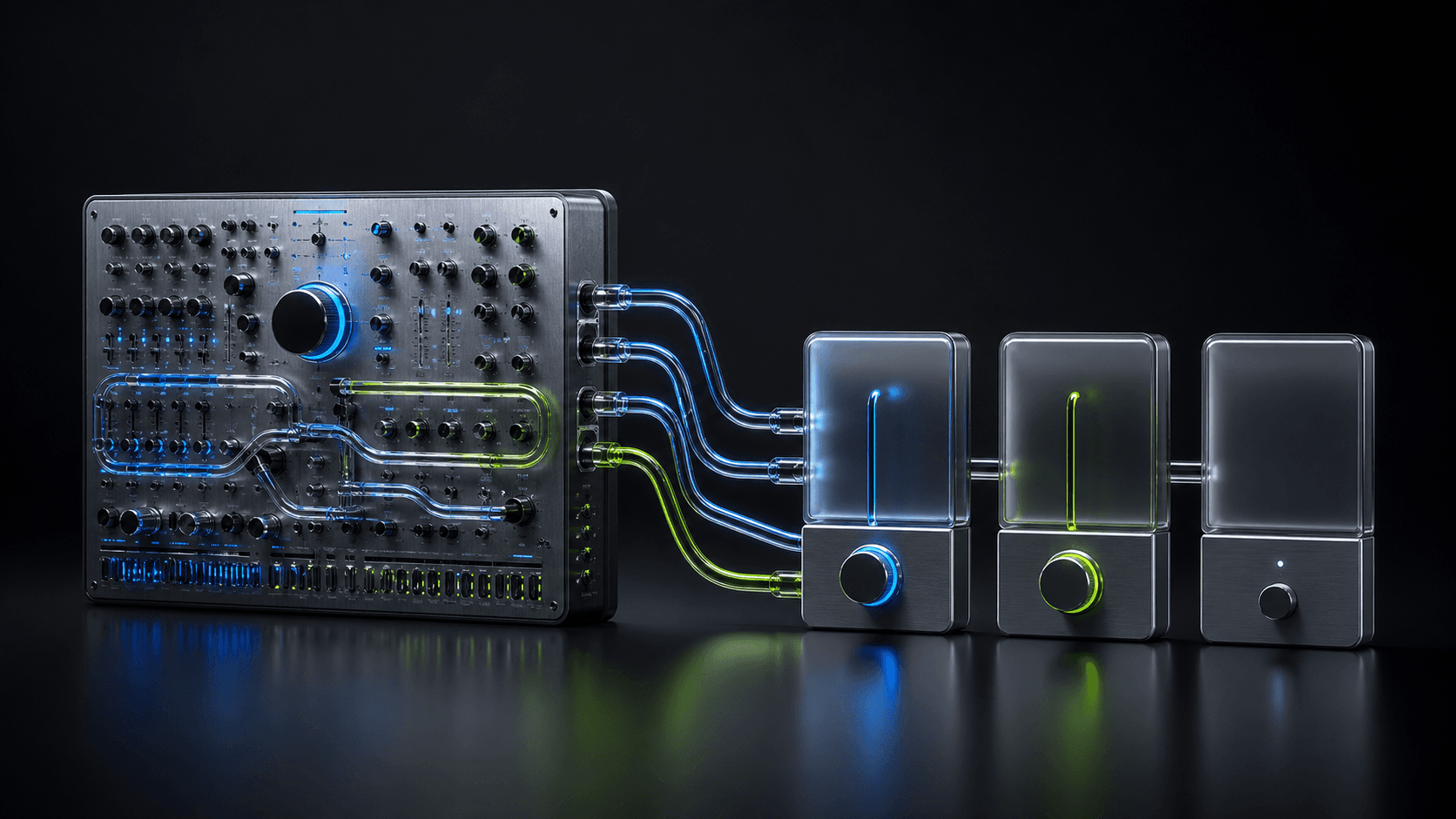
SOUND adds an output choice to every app that is actively playing audio. Keep an app on the system output, or pin it to a specific device your Mac can already use. The choice belongs to that app rather than becoming a new setting for everything else.
The result is a much more natural setup: calls can stay in headphones, music can go to speakers, and neither decision has to interrupt the other. Once the outputs are right, use the Mac volume mixer to balance them independently.
A simple two-device setup
- Connect the headphones and speaker you want to use.
- Start playback in both the call app and music app.
- Open SOUND from the menu bar.
- Assign the call app to headphones.
- Assign the music app to speakers, or leave it on System if that is your default output.
When per-app routing helps most
It is useful whenever two audio jobs have different destinations: focused calls, a shared room, a display with its own speakers, or a home setup with more than one available output. You do not need to rebuild your audio setup. Just choose where each active app belongs.
Routing is separate from volume
Choosing an output answers where an app should play. Per-app volume answers how loud it should be there. You can combine both: keep a call in headphones at a clear level while music goes to speakers at a quieter one. Our Mac volume mixer guide covers that second adjustment.
Frequently asked questions
- Can a Mac send different apps to different speakers?
- macOS selects one main output device for the Mac. SOUND adds per-app output routing, letting you keep an app on the system output or assign it to a specific available device.
- Can I keep a call in my headphones while music plays on speakers?
- Yes. In SOUND, assign the calling app to your headphones and the music app to your speakers, provided both outputs are available to your Mac.
- Do I need extra audio hardware to route apps separately on Mac?
- No. SOUND routes apps to the output devices already available to your Mac, such as its speakers, headphones, or connected audio devices.