Mac audio guide
Background Music stopped working on macOS Tahoe? Here’s a modern replacement
Background Music's virtual audio driver broke on macOS 26 Tahoe. Here's why, and how to get per-app volume back with the audio engine Apple built to replace drivers.
August 17, 20264 min read
Background Music gave Macs something macOS never shipped: a volume slider for every app. If its sliders stopped responding after you updated to macOS Tahoe, the problem is not your setup. It is the architecture the app was built on.
Five options, one view
Mac audio apps at a glance
SOUND is the focused free option for macOS 26: per-app EQ, volume, and routing, with no virtual audio driver installed.
| App | Price | Core controls | Audio setup | System |
|---|---|---|---|---|
 SOUND SOUND | Free | 8-band EQ, volume, routing per app | No virtual audio driver | macOS 26+ |
 FineTune FineTune | Free · open source | 10-band EQ, volume, routing per app | System audio permission | macOS 15+ |
 SoundSource SoundSource | $49 | EQ, volume, routing, Audio Units | System audio permission | macOS 15–27 |
 eqMac eqMac | Free EQ · Pro app mixer | System EQ; paid per-app mixing | User-space loopback driver | macOS 10.13+ |
 Sound Control Sound Control | Paid · trial available | 10/31-band EQ, routing, AU, MIDI | System audio access | macOS 11.4–26 |
Pricing, features, and compatibility checked against each maker’s official site on September 13, 2026.
What broke on macOS Tahoe
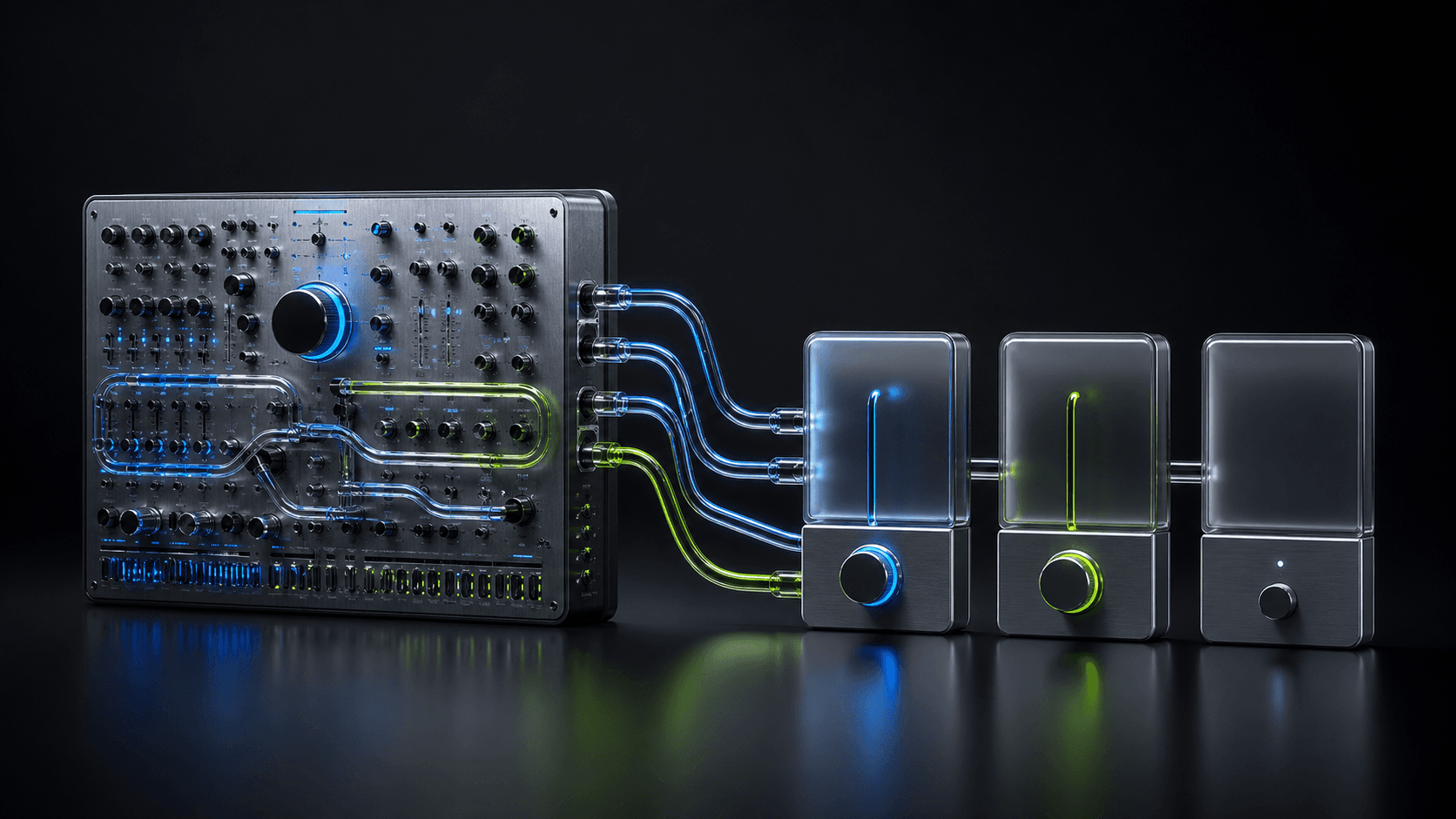
Background Music works by installing a virtual audio device and routing every app’s sound through it. That approach served the Mac well for years, but it depends on the system audio stack staying friendly to third-party drivers. On macOS Tahoe, users on the project’s issue tracker report exactly what a stalled driver looks like: the app opens, the sliders move, and nothing changes.
The project is open source and volunteers may yet revive it. But the deeper issue is that the driver architecture itself is aging out, and each macOS release makes that ground less stable.
Why driver-based tools age badly
A virtual audio driver sits between every app and your speakers. It has to be installed into the audio stack, appear as a device, and keep up with every change Apple makes underneath it. When it falls behind, the failure is rarely graceful: audio routes into a device that no longer processes it, and your Mac goes quiet or your mixer goes inert.
That is also why removing an abandoned driver matters. It keeps occupying a place in your output list and can catch audio you meant to go elsewhere.
The engine Apple built to replace them
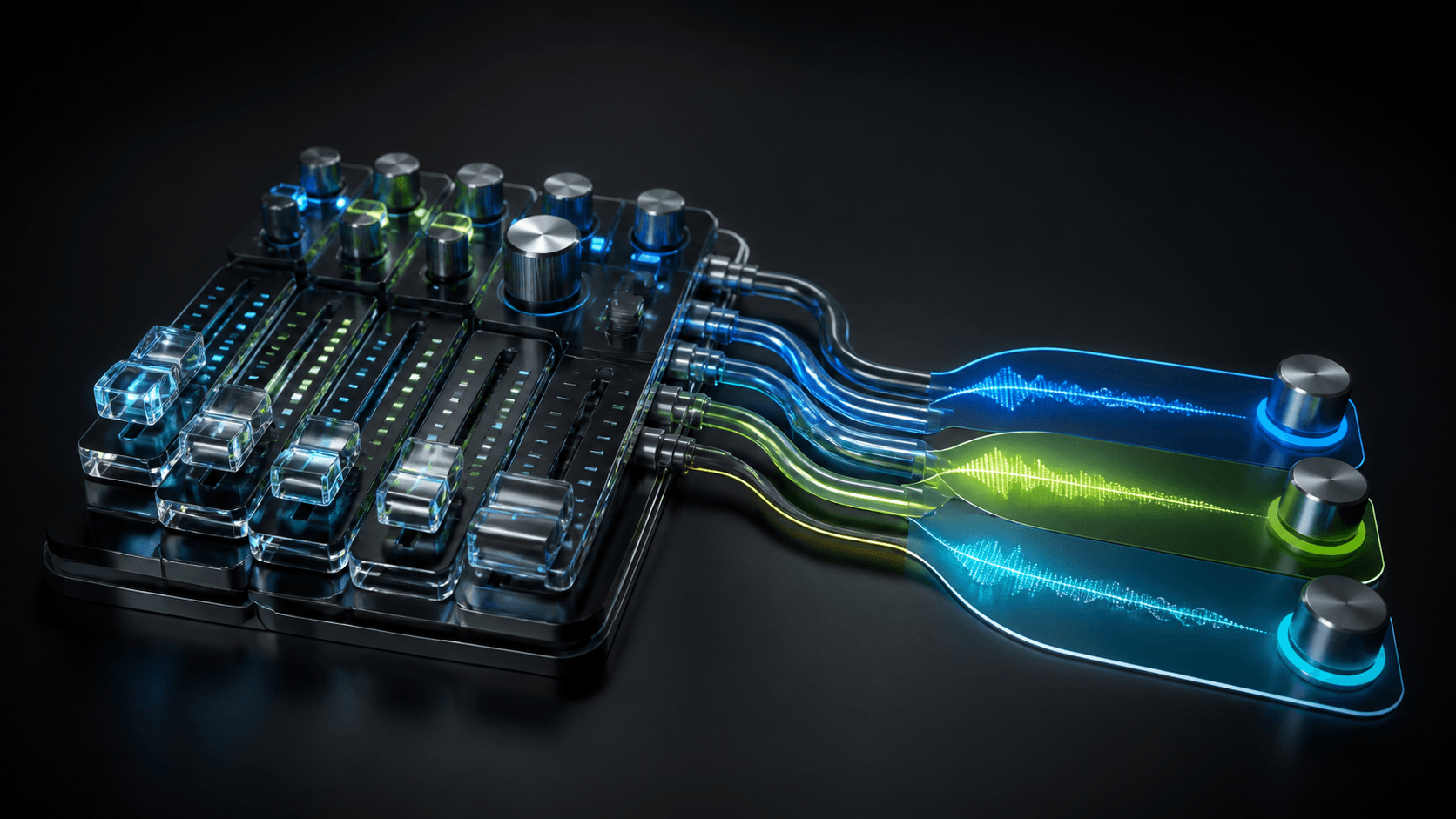
Modern macOS includes a per-app audio engine that lets a tool observe and shape one app’s audio directly, with the system’s permission, and without adding anything to the audio stack. SOUND is built entirely on it: no virtual devices, no kernel extensions, no restart, and nothing new in Audio MIDI Setup. When you quit it, your Mac’s audio is exactly as it was.
Migrate in a couple of minutes
- Uninstall Background Music using the project’s uninstall instructions, so its virtual device is removed cleanly.
- Check System Settings → Sound → Output shows your real device.
- Download SOUND and open it from the menu bar.
- Grant the one-time system audio permission when macOS asks.
- Play audio in any app and adjust its slider.
What you gain beyond volume
Background Music was a volume mixer. SOUND covers that job and adds the two controls people usually reach for next: an 8-band equalizer for each app, and per-app output routing, so music can play on speakers while a call stays in your headset. Each control belongs to the app it adjusts, and a System master covers everything you have not customized.
If you keep Background Music installed
Nothing stops you from keeping it while you decide, but leave its device unselected in Sound settings so it does not capture audio it can no longer play. If your Mac ever seems silent for no reason, check whether an old virtual device is still selected as the output. That single check resolves most mystery-mute reports we hear about.
Frequently asked questions
- Why did Background Music stop working on macOS Tahoe?
- Background Music installs a virtual audio driver, and macOS 26 changed the system audio stack in ways the project has not caught up with. Users report silent sliders and broken device switching on Tahoe.
- What is the modern replacement for a virtual audio driver on Mac?
- Modern macOS includes a per-app audio engine that lets a tool observe and shape an app's audio without installing anything into the audio stack. SOUND is built entirely on it.
- Do I need to uninstall Background Music before installing SOUND?
- It's recommended. Removing Background Music and its virtual device leaves your Mac's audio stack clean, so nothing competes with the system output. SOUND itself adds no devices to remove later.