Mac audio guide
Spotify equalizer for Mac: adjust Spotify only
Give Spotify its own EQ on Mac without changing calls or browser audio. Try practical presets and tune eight bands per app on macOS 26.
August 14, 20264 min read
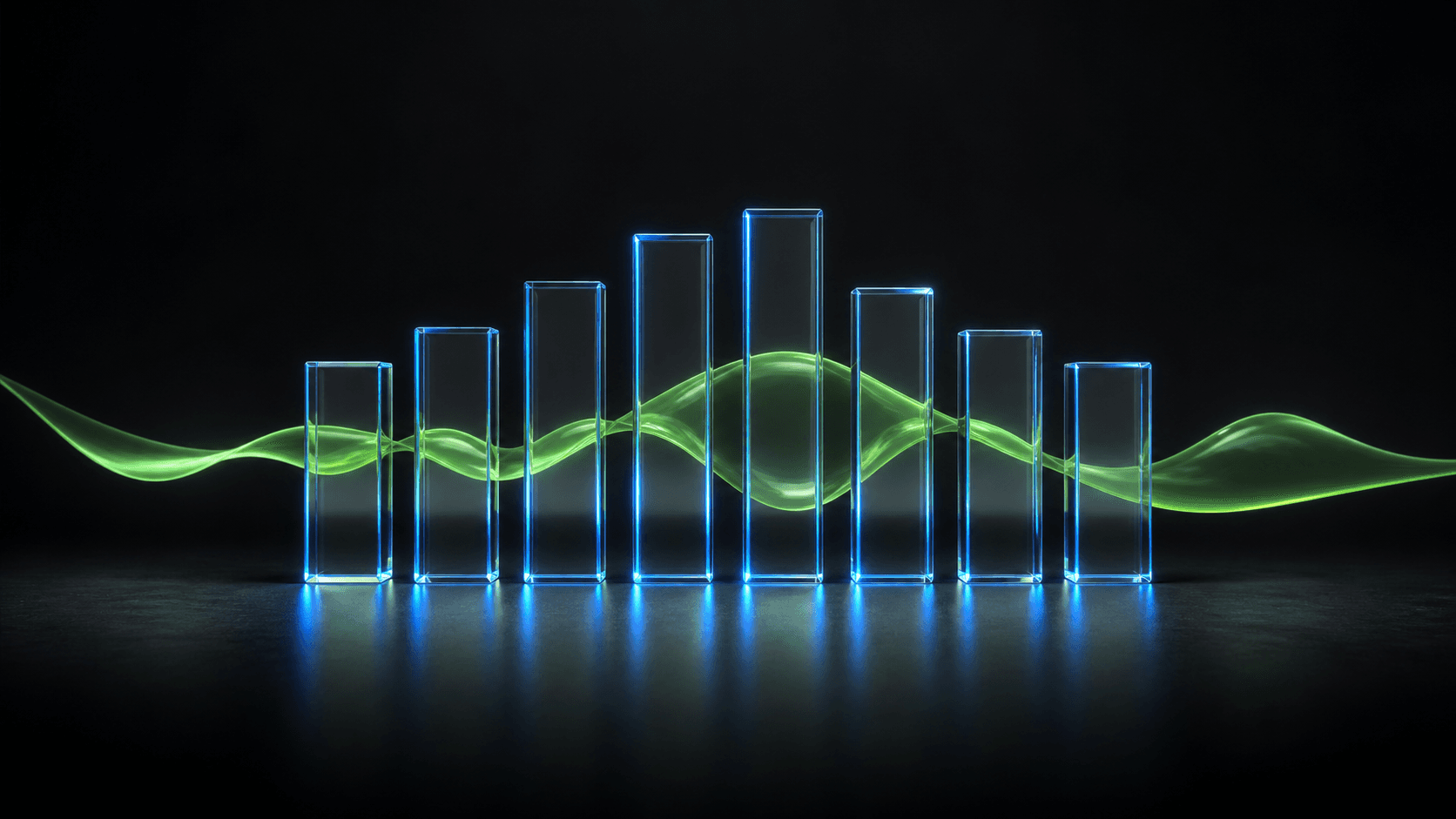
A Spotify equalizer for Mac lets you shape music playback without changing calls, browser audio, or alerts. A per-app equalizer keeps Spotify’s sound independent from every other app on your Mac.
Start with the listening problem
“More bass” is not always the right answer. If the music feels thin, you may want a little more low end. If vocals get lost, a vocal-focused curve can be a better starting point. If a track already sounds right, Flat is the best setting because it does not invent a problem to fix.
The useful part of a Spotify equalizer on Mac is not a dramatic curve. It is the ability to make a small, repeatable correction and keep it attached to Spotify rather than to your whole output device.
Pick a preset with a purpose
SOUND includes Flat, Bass Boost, Vocal, Podcast, and Bright presets. Flat is the reference point: use it when the track already feels right. Try Bass Boost when a familiar track genuinely feels thin, or Bright when it needs a little more edge. Vocal and Podcast are useful starting points when clarity matters more than weight.
A preset is a starting point, not a command. Switch back to Flat after a minute and trust the comparison over the name of the curve.
Apply an equalizer to Spotify only
Start playing a track in Spotify, open SOUND from the menu bar, then select Spotify from the active apps. Choose Flat, Bass Boost, Vocal, Podcast, or Bright, or adjust the 8-band equalizer directly. The change applies in real time to Spotify alone.
That means your music can have a custom curve while a meeting, video, or browser tab stays untouched. It is a cleaner setup than changing a shared output setting every time you switch what you are listening to.
Need to compare free and paid tools before choosing one? Our five-app Mac equalizer comparison separates per-app and system-wide options, macOS requirements, and what each app installs.
A calm way to tune it
- Begin with Flat and listen to a familiar track.
- Try one preset that matches the issue you hear.
- If needed, move one band a small amount, then listen again.
- Save the curve once it works across the music you play most.
- Leave other apps on their own settings.
Why per-app settings matter
Music is only one job your Mac does. A Spotify curve that feels good through your speakers may not be right for a call, a podcast, or a browser video. Keeping the equalizer per app gives each source room to sound right without asking every other source to follow along. For the broader setup, see the Mac equalizer guide for any app.
Save only the curves you return to
When a small custom adjustment works across the music you play most, save it as a preset. SOUND syncs custom presets across your Macs with iCloud, so a useful curve does not have to be rebuilt from scratch. Keep it simple: a few named, intentional presets are easier to trust than a drawer full of near-duplicates.
Frequently asked questions
- Can I equalize Spotify on a Mac?
- Yes. SOUND can apply its 8-band equalizer to Spotify while it is playing audio, without changing the sound of your other apps.
- What equalizer setting should I use for Spotify?
- Start Flat, then make small changes for the problem you hear. SOUND includes Bass Boost and Bright presets, and lets you save a custom curve once it sounds right.
- Will changing Spotify’s EQ affect calls or browser audio?
- Not when you use a per-app equalizer. SOUND stores Spotify’s settings independently, so other apps can keep their own settings or remain flat.